
Upload to a Klaviyo Campaign
Send an email design to Klaviyo as a template and a draft campaign, with the subject line, preview text and audience filled in from your Figma board.
Part 6 of 7 - watch all the tutorials in a row.
Carvr makes the template and a draft campaign in Klaviyo. It never sends or schedules. You do that in Klaviyo.
Before you start
If Carvr shows Reconnect Klaviyo, click it and approve in Klaviyo. This gives Carvr campaign access, once per brand. A brand added with an API key shows Sign in with Klaviyo instead.
From the Figma plugin
- Select one email for a Klaviyo brand.
- Set Send as to Draft campaign.
- Open Inbox details and check the campaign name, subject line, preview text and audience. They fill in from your board.
- Click Create draft campaign, then Open in Klaviyo.
From the web editor
- Click the arrow next to the upload button and choose Draft campaign in Klaviyo.
- Type the subject line and preview text, and check the audience.
- Click Create draft campaign, then Open in Klaviyo.
Set up your Figma board
Duplicate the Figma template, an empty board to copy and a filled-in example. Or put the email and its details in one frame, like this.
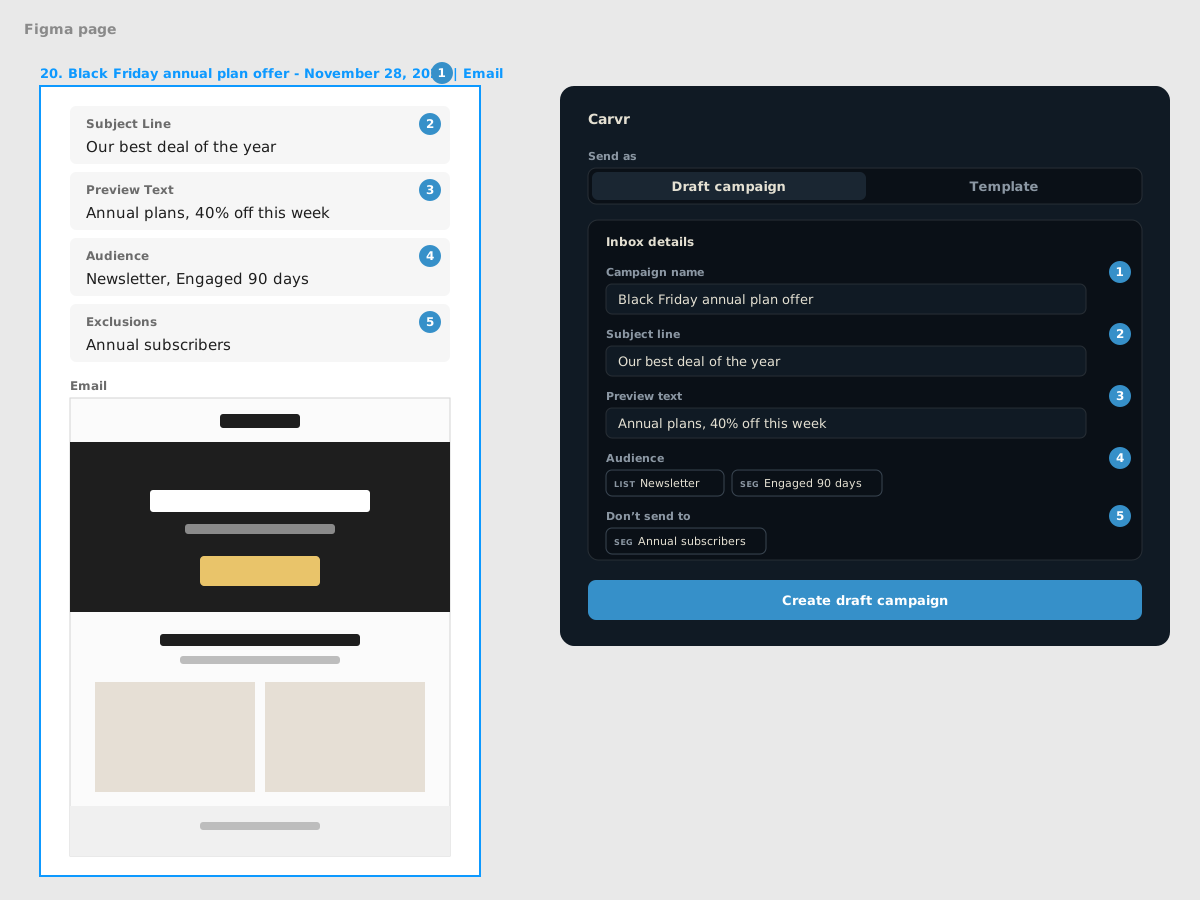
- Make a frame or group for the email. Name it number. Campaign name - date | Email, for example “20. Black Friday annual plan offer - November 28, 2026 | Email”. The campaign is named “Black Friday annual plan offer”.
- Inside it, add four frames or groups named Subject Line, Preview Text, Audience and Exclusions. Put the value in each as text.
- Put the email design in the same frame.
Frames and groups work the same, for the details and for the frame around the email. Separate lists with commas, using their names in Klaviyo. Anything else in the frame, like a status, is ignored.
Other labels that work
| Field | Frame, group or text named | Text only |
|---|---|---|
| Campaign name | The frame’s name, as in step 1 | |
| Subject line | Subject Line, Subject, Email subject | SL |
| Preview text | Preview Text, Preheader, Pre-header | Preview, PT |
| Audience | Audience, Send to | Lists, Segments, Recipients |
| Don’t send to | Exclusions, Exclude, Don’t send to | Excluded, Suppressed, Suppression |
Capitals don’t matter. One text like “Subject line: Our best deal of the year” works too.
If a detail doesn’t fill in
- Campaign name says “Email”. The frame isn’t named “number. name - date | Email”, so Carvr used the email frame’s own name. Rename either one.
- A field is empty. The label and value must be in the same frame or group, or in one text.
- Two lists read as one. Use commas, not new lines.
- A list is missing. The name must match the list or segment in Klaviyo.
- Nothing fills in. The details must be in a frame named like the example, or within 400 px of the email. Never inside the email design.
- You changed the board. Select another layer, then the email again.
No details on the board? Carvr uses the audience from the brand’s last Klaviyo campaign, and you type the rest in Inbox details.
After it’s made
- Change it. Open the email from History in the web editor. While the campaign is still a draft, the button reads Update in campaign and updates the draft too.
- Campaign not made? The template is still in Klaviyo. Fix the audience and click Retry campaign (Retry campaign only in the web editor). No new template, no extra credit.
- Footer and top banner. If the brand has a universal footer or top banner, it is added to the template, so the campaign has it too.
Frequently Asked Questions
Does Carvr send the campaign?
No. Carvr only makes a draft. You send or schedule it in Klaviyo.
Does a draft campaign cost an extra credit?
No. It costs the same as the template, one email upload.
Does it work for Omnisend, Mailchimp or Redo?
No, Klaviyo only. Other brands upload templates as before.
Can I send several emails as campaigns at once?
No, one at a time. Several emails selected in the plugin upload as templates.